
Your Applicant Dashboard

When you first log in to the system*, or when you click the house icon at the top of the page (green arrow), you will see your applicant dashboard. Your dashboard is divided into two main sections: the “to-do list” on the left and the “request panel” on the right.
*Note: if you have no previous applications in the system, your view will begin at the “apply” page, where you can click the “preview” button to see a PDF of the application form (in English) or the “apply” button to start an application. See the “apply page” explanation towards the bottom of this webpage for more detail.
To-Do List
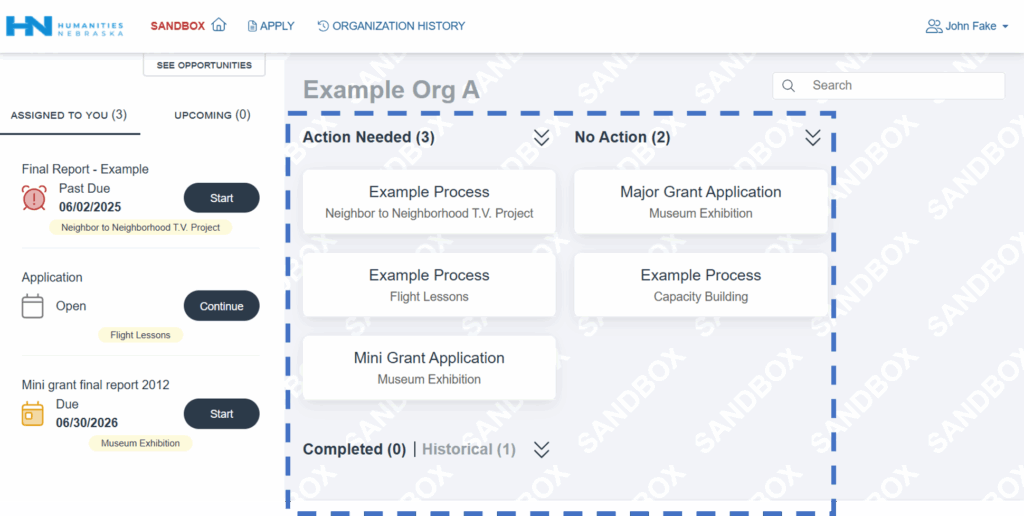
The section on the left, outlined in the screen shot below with a red dotted line, is your “to-do list”. Any outstanding items you need to complete will be listed here, including saved application drafts, grant agreements, and final reports.
The “assigned to you” tab in that section (pink arrow) shows items you can work on and submit right now. The “upcoming” tab (orange arrow) shows items you can’t submit yet. (For example, the grant final report will appear under “upcoming” before you have completed your grant agreement.)
For current items in your to-do list, you’ll see an yellow calendar icon. For past-due items, you’ll see a red clock icon. An application draft with no due date will have a white calendar icon.
To work on an item in your to-do list, click on the “start” or “continue” button.

Request Panel
The section on the right, outlined in the screenshot below with a blue dotted line, is your “request panel”. You will see boxes in your request panel corresponding to submitted applications for which you’ve had responsibility. The applicant in the example screen shot has five open applications at various stages.
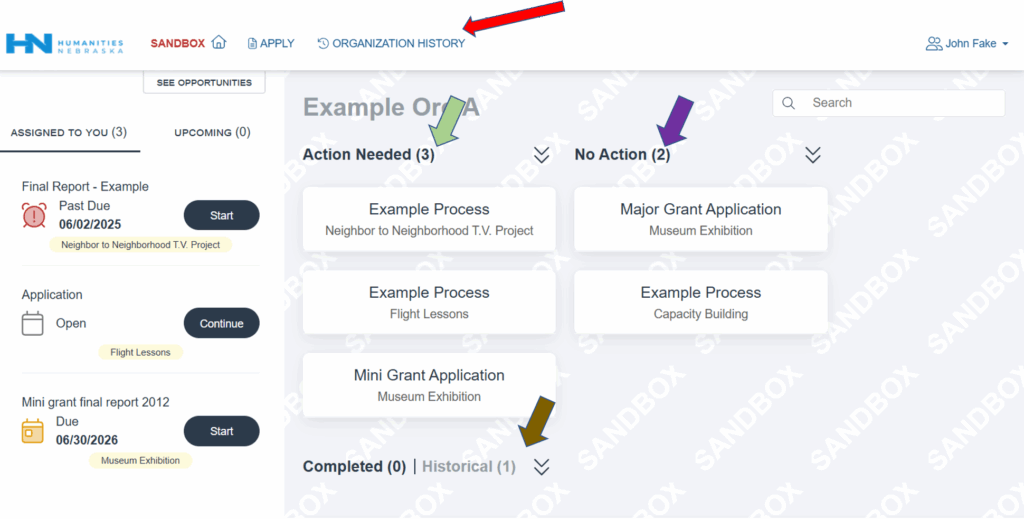
The request panel includes three sections, as highlighted in the screenshot below.
The “action needed” section (green arrow) duplicates the information in your “to do list” in a different way.
The “no action” section (purple arrow) means the ball is in Humanities Nebraska’s court. Either this is a pending application, or an application that has been approved but is pending processing by Humanities Nebraska.
The “completed/historical” section (brown arrow) shows any previous application at your organization for which you had responsibility as the applicant or as the person to whom a grant agreement or final report was assigned. You can toggle between tabs in that column: “completed” means HN has accepted all forms but still needs to close the grant file, and “historical” means the grant application is closed.
NOTE: to see the full history of applications for your organization, beyond the ones for which you were responsible, click “organization history” (red arrow) at the top of your dashboard.
How to edit or view your application, grant agreement, or final report
- If you have not yet submitted the application, grant agreement, or final report:
Click on the “start” or “continue” buttons in your to-list list on the left side of your dashboard to view or edit the document.

- If you have submitted the application, grant agreement, or final report:
- Use the double-arrow icon (red arrow) to expand the boxes, if needed.
- Click on the “documents” button (yellow arrow), which will drop down a menu of available forms.
- Click on the link for the form you want to see. In this example, the green arrow is pointing to the completed application form.

- A final note:
You can also click on the text in a box, which will take you to the old “home page” for an application. To view the application, click on the document icon on the right side of the page (red arrow).

Apply Page
To start a new application, click on the “apply” icon on the top of the page to open the page of available opportunities, then click the “apply” button next to the application you want to start. The “preview” button will give you a view-only English-language PDF of the application questions, so you can see them before you start an application.

NOTE: if your organization currently has an open request in the system, instead of seeing the “preview” and “apply” buttons, you will see a button with a green check mark that says “applied”.
To start a new application, click the “applied” button. An “existing request” window will pop up. Click the “apply again” button to start a new application.

